VS Code Extension
The Wvlet extension provides syntax highlighting and language support for .wv files in Visual Studio Code.
Installation
Install from the VS Code Marketplace or search for "Wvlet" in VS Code's Extensions view.
Features
- Syntax Highlighting: Full support for Wvlet keywords, operators, and syntax
- Bracket Matching: Automatic matching for
{},[],(), and${} - Comment Support: Single-line (
--) and multi-line (---) comments - String Interpolation: Highlighting for
${...}expressions - Auto-closing: Brackets and quotes automatically close when typed
- Diagnostics: Compilation errors are reported inline as you edit
- Document Outline: Models, types, vals, and flows appear in the outline view
- Code Completion: Context-aware suggestions as you type
- Hover Information: Type and schema details when you hover over models and columns
- Go to Definition: Jump from a model or type reference to its definition, also across workspace files
Code Completion
The extension suggests candidates while you write a query. Completion is triggered
automatically as you type or on demand with Ctrl+Space, and offers:
- Keywords: Wvlet language keywords such as
from,select, andwhere - Model & definition names: Models, types, vals, and flows defined in the current file and in other workspace files, including table types from an imported catalog
- Column names: Columns available at the cursor, resolved from the query's input relation
(for example, after
fromand insideselectorwhere) - Function names: Well-known SQL functions such as
countandregexp_replace
Typing . after a table alias or table name suggests only that relation's columns, and
typing . after a schema name suggests the tables of that schema (from an imported
catalog) — for example orders. lists the order columns, and sales. lists the tables of
the sales schema.
Column suggestions rely on type resolution, so they appear once the surrounding query is complete enough to be analyzed. Outside member-access contexts, keyword and definition suggestions are always available, including while a query is still being written.
Hover Information
Hover over a symbol to see its type information in a tooltip:
- Models: The model signature — its name, parameters, and output schema (each column with its type)
- Columns: The column name and its resolved data type, for example
name: string - Type definitions: The declared fields of a type
Hover relies on type resolution, so it appears once the surrounding query is complete enough to be analyzed. When the cursor is not on a symbol with a resolved type, no tooltip is shown.
Go to Definition
Place the cursor on a model or type reference and use Go to Definition (F12, or
Cmd/Ctrl + click) to jump to the model or type statement that defines it. For
example, from from my_model you can jump to the model my_model = ... definition, and
from a type reference to its type declaration.
Go to Definition works across the files of your workspace: a reference to a model or type
defined in another .wv file — including table types imported into the catalog/ folder by
wvlet catalog import — opens the defining file at the definition.
When the same name is defined both in the current file and elsewhere, the definition in the
current file wins.
Working with Database Tables
The language server loads the .wv sources of your workspace folder (the first folder in a
multi-root workspace), including the catalog/ folder generated by
wvlet catalog import. After importing your database catalog once,
table references such as from sales.orders resolve offline in the editor: diagnostics
validate them, hover shows their columns, and column names complete — no live database
connection needed.
Note: source discovery follows the compiler's folder scan, which descends into folders that
contain .wv files (plus the catalog/ folder, which is always loaded). Keep at least one
.wv file at the workspace root — or open the folder that holds your queries — so nested
sources are found.
Known Limitations
- Schema for database tables: Tables get completion and hover only when their schema is
known — from a
model/typedefinition in the workspace or from an imported catalog (see above). File sources such asfrom 'data.json'do not yet carry a schema in the editor. - Requires an analyzable query: Column completion and hover rely on type resolution, so they appear once the surrounding query is complete enough to be analyzed. While a query is still being written, keyword and definition-name suggestions remain available.
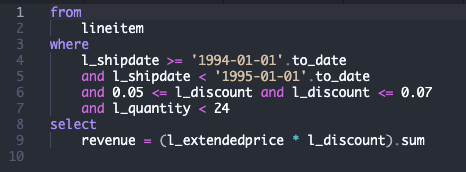
Example
Pre-release Versions
To try new features early, switch to the pre-release version from the extension's settings in VS Code.